

How to Access My iMIT Documents?
ACCESSING YOUR DOCUMENTS IN iMIT WITH AN ACTIVE KERBEROS ACCOUNT
1. Log in to iMIT through “Full Client Services for Students“.
2. Filtering Documents once on the “Documents” page:
- On the top right-hand side of your iMIT Services Home Page, click on the “Documents” tab. Refer to the encircled item below.
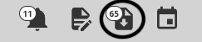
NOTE: The notification numbers may vary from the example.
3. Filtering Documents once on the “Documents” page:
- On the “Documents” page, scroll to the bottom to customize your view.
- Under “Show these document types:”, check the document types you wish to view.
- In the “Show most recent only” section:
- Select “Yes” to display only recently uploaded documents.
- Select “No” to show all documents attached to your file since the beginning.
4. Apply Filters:
- After making your selections, click the “Filter Documents” button.
- The list will populate according to your chosen filters.
ACCESSING YOUR DOCUMENTS IN iMIT WITHOUT AN ACTIVE KERBEROS ACCOUNT
If you DO NOT have an active Kerberos account, follow the steps below:
1. Go to this link and review “Step 1” for how to log in to iMIT through “Limited Client Services“.
2. Filtering Documents once on the “Documents” page:
- On the top right-hand side of your iMIT Services Home Page, click on the “Documents” tab. Refer to the encircled item below.
NOTE: The notification numbers may vary from the example.
3. Filtering Documents once on the “Documents” page:
- On the “Documents” page, scroll to the bottom to customize your view.
- Under “Show these document types:”, check the document types you wish to view.
- In the “Show most recent only” section:
- Select “Yes” to display only recently uploaded documents.
- Select “No” to show all documents attached to your file since the beginning.
4. Apply Filters:
- After making your selections, click the “Filter Documents” button.
- The list will populate according to your chosen filters.
If you prefer to access a downloadable PDF version of these instructions, please click here.
